
Account & Security
Two-Factor Authentication
Two-factor authentication (2FA) adds an extra layer of security to your Crypto Barter account. When enabled, you'll need both your password and a verification code from your phone to log in. This protects your account even if your password is compromised.
Why Use Two-Factor Authentication?
- Enhanced Security:Even if someone obtains your password, they can't access your account without your phone.
- Protect Transactions:Since Crypto Barter deals with cryptocurrency, 2FA helps protect your wallet addresses and transaction history.
- Prevent Unauthorized Access:Get alerts when someone tries to log in to your account.
- Industry Standard:2FA is recommended for all accounts involving financial transactions or cryptocurrency.
What You'll Need
Before setting up 2FA, you'll need an authenticator app on your smartphone. Popular options include:
- Google Authenticator - Available on iOS and Android
- Authy - Available on iOS, Android, and desktop
- Microsoft Authenticator - Available on iOS and Android
- 1Password - Built-in authenticator if you use 1Password
Download one of these apps from your device's app store before proceeding.
Setting Up Two-Factor Authentication
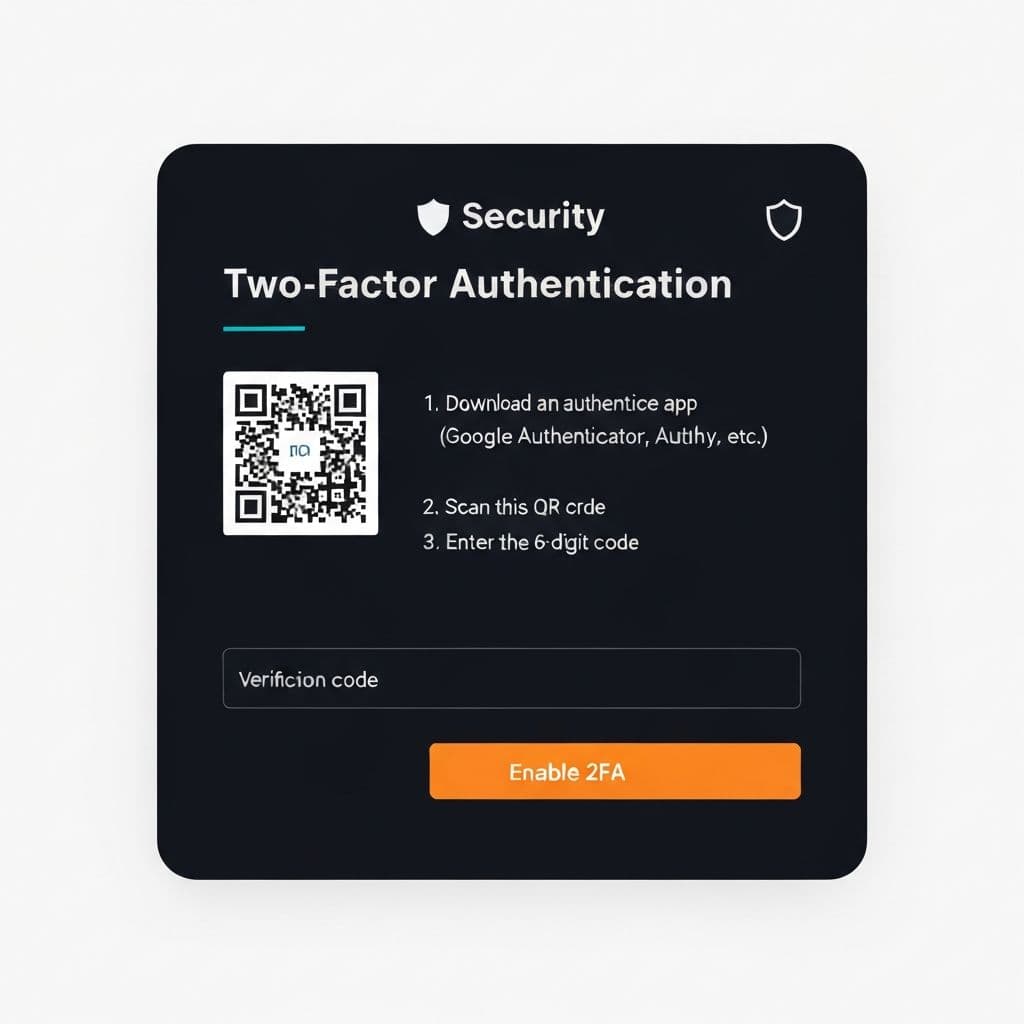
Follow these steps to enable 2FA on your account:
- Go to your Settings page
- Find the "Security" or "Two-Factor Authentication" section
- Click "Enable 2FA" to begin setup
- Open your authenticator app on your phone
- Scan the QR code displayed on screen (or enter the manual code)
- Your authenticator app will now display a 6-digit code that changes every 30 seconds
- Enter the current 6-digit code in the verification field
- Click "Verify" to complete setup
Save Your Backup Codes
When you enable 2FA, you'll receive backup codes. These are critical for account recovery:
- Save them securely: Store backup codes in a safe place separate from your phone
- Each code works once: Use a backup code if you can't access your authenticator app
- Don't share them: Treat backup codes like passwords - never share them
- Generate new codes: If you use all backup codes, generate new ones from your settings
Logging In with 2FA Enabled
Once 2FA is enabled, here's what your login process looks like:
- Enter your email/username and password as usual
- You'll be prompted to enter a verification code
- Open your authenticator app and find the code for Crypto Barter
- Enter the 6-digit code (codes change every 30 seconds)
- Click "Verify" to log in
Disabling Two-Factor Authentication
If you need to disable 2FA (not recommended):
- Go to your Settings page
- Navigate to the "Two-Factor Authentication" section
- Click "Disable 2FA"
- Enter a verification code from your authenticator app to confirm
- Confirm that you want to disable 2FA
We strongly recommend keeping 2FA enabled for maximum account security.
Troubleshooting
- Code not working:Make sure the time on your phone is accurate. Authenticator apps rely on precise timing.
- Lost phone:Use one of your backup codes to log in, then set up 2FA with a new device.
- No backup codes:Contact our support team for account recovery assistance.
- Switching phones:Set up 2FA on your new phone before resetting your old one, or use backup codes.
Related Articles
- Changing Your Password - Update your account password
- Account Recovery - Regain access to your account
Need Help?
If you're having trouble with two-factor authentication, please contact our support team. We're here to help!