
Account & Security
Changing Your Password
Regularly updating your password is a good security practice. Crypto Barter makes it easy to change your password from the Settings page. This guide covers how to change your password when you're logged in.
If you've forgotten your password and can't log in, see our Account Recovery guide instead.
How to Change Your Password
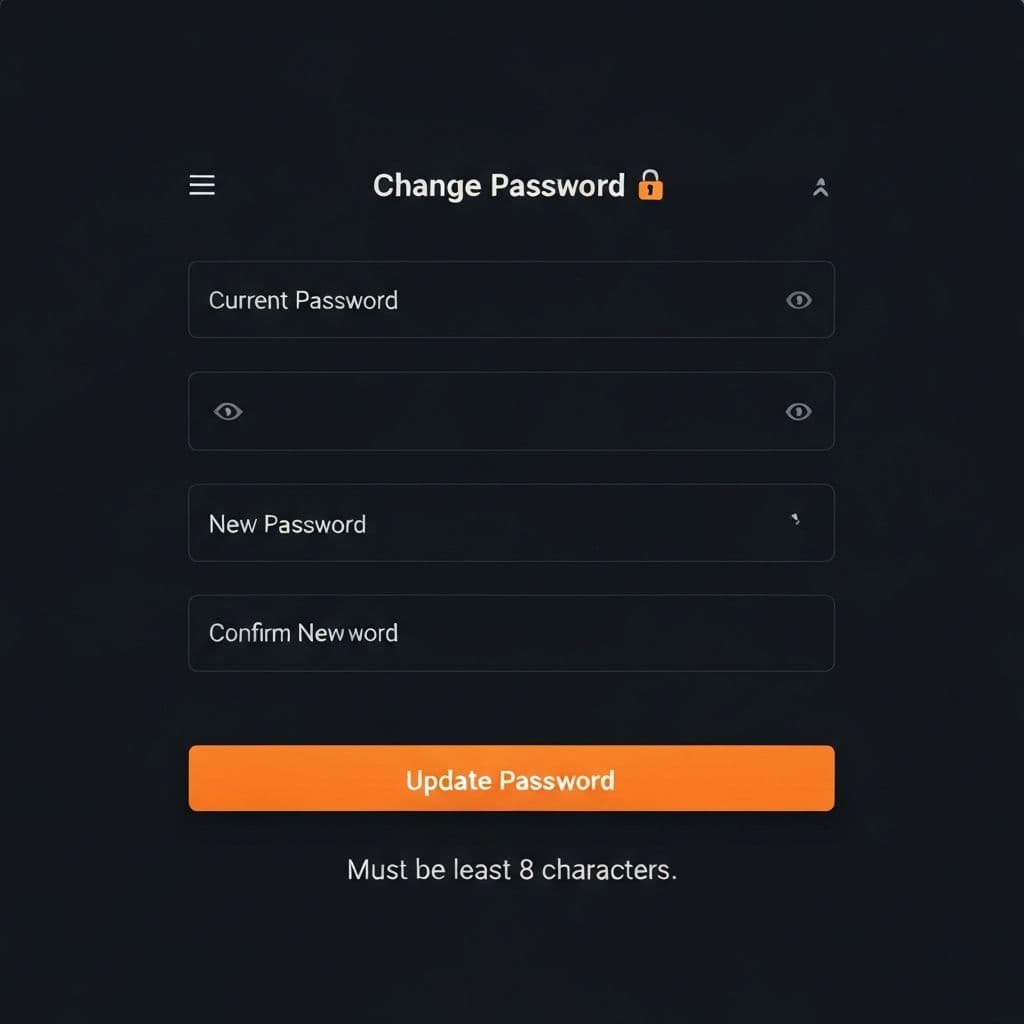
Follow these steps to change your password:
- Log in to your Crypto Barter account
- Navigate to Settings (click the gear icon or your profile)
- Find the "Change Password" section
- Enter your current password to verify your identity
- Enter your new password (must be at least 8 characters)
- Re-enter your new password in the "Confirm Password" field
- Click the "Update Password" button
You'll see a success message when your password has been updated. You can continue using the app without logging out.
Password Requirements
Your new password must meet these requirements:
- Minimum length: At least 8 characters
- Different from current: Your new password cannot be the same as your current password
- Matching confirmation: The "New Password" and "Confirm Password" fields must match
Tips for a Strong Password
Protect your account with a strong, unique password:
- Use a mix of characters: Combine uppercase, lowercase, numbers, and symbols
- Make it long: Longer passwords are harder to crack - aim for 12+ characters
- Avoid common words: Don't use dictionary words, names, or obvious patterns like "123456"
- Use unique passwords: Don't reuse passwords from other accounts
- Consider a password manager: Tools like 1Password, Bitwarden, or LastPass can generate and store strong passwords
Troubleshooting
- "Current password is incorrect":Make sure you're entering your existing password correctly. If you forgot it, use the password reset option.
- "Passwords do not match":Ensure your new password and confirmation password are identical.
- "Password too short":Your new password must be at least 8 characters long.
- Can't remember current password:Log out and use the "Forgot Password" link on the login page, or click "Send Reset Email" in Settings.
Alternative: Request a Password Reset Email
If you prefer, you can also reset your password via email:
- Go to Settings
- Find the password section
- Click "Send Reset Email"
- Check your email for a password reset link
- Click the link and set your new password
This is useful if you don't remember your current password but are still logged in.
Related Articles
- Account Recovery - Reset your password if you can't log in
- Two-Factor Authentication - Add extra security to your account
Need Help?
If you're having trouble changing your password, please contact our support team. We're here to help!